
Drag and drop scheduling is a visual method that lets managers plan and adjust work assignments by physically moving tasks across a calendar or timeline interface. For HVAC, electrical, and plumbing businesses, this approach replaces phone calls, whiteboards, and spreadsheet guesswork with a live, clickable schedule that updates in real time. The industry standard for professional scheduling interfaces is 5-minute cell precision, meaning managers can place jobs with surgical accuracy. Pair that with automated labor law conflict detection, and you have a workforce management tool that saves hours every week.
What is drag and drop scheduling and how does it work?
Drag and drop scheduling, formally known as visual resource scheduling, is the practice of assigning and moving work tasks on a graphical calendar by clicking and dragging them to the correct technician, time slot, or date. The interface mirrors how a dispatcher thinks: you see your team across the top, the hours down the side, and jobs as movable blocks in between. When a job changes, you move the block. The schedule updates instantly for everyone.
The core mechanics rely on three features working together. First, real-time syncing pushes every change to office staff and field technicians simultaneously. Second, conflict detection flags violations such as double bookings or labor law breaches the moment a task lands in an illegal slot. Third, overlap stacking displays double bookings side by side or as a "+N" badge so managers can see the problem without the interface breaking down.

Hardware and access requirements
A visual scheduling tool runs on desktops, tablets, and smartphones. Desktop gives the most screen real estate for dense schedules with many technicians. Tablets work well at the job site for supervisors reviewing the day. Mobile access is non-negotiable for field technicians who need to see their updated assignments without calling the office.
Setting up the system before your first schedule
Before dragging a single task, configure three things: user roles, calendar views, and buffer rules. User roles control who can move jobs, who can only view them, and who receives alerts. Calendar views should match your workflow, whether that is a daily technician grid, a weekly job board, or a monthly project timeline. Buffer times and recurring event rules set upfront reduce manual adjustments later and prevent back-to-back jobs that leave no travel time.
| Feature category | What it does | Why it matters for trades |
|---|---|---|
| Real-time syncing | Pushes changes to all devices instantly | Keeps office and field aligned |
| Conflict detection | Flags labor law and double-booking issues | Prevents non-compliant shifts |
| Overlap stacking | Shows competing jobs visually | Avoids hidden scheduling errors |
| 5-minute precision | Allows granular time placement | Matches real job durations |
| Mobile access | Full schedule visibility on phones | Field techs stay informed |
How to use drag and drop scheduling step by step
Step 1: Create the job or appointment. Click an open slot on the calendar grid and enter the job details: service type, estimated duration, required certifications, and customer address. Most scheduling software lets you save job templates so recurring service types take seconds to create.
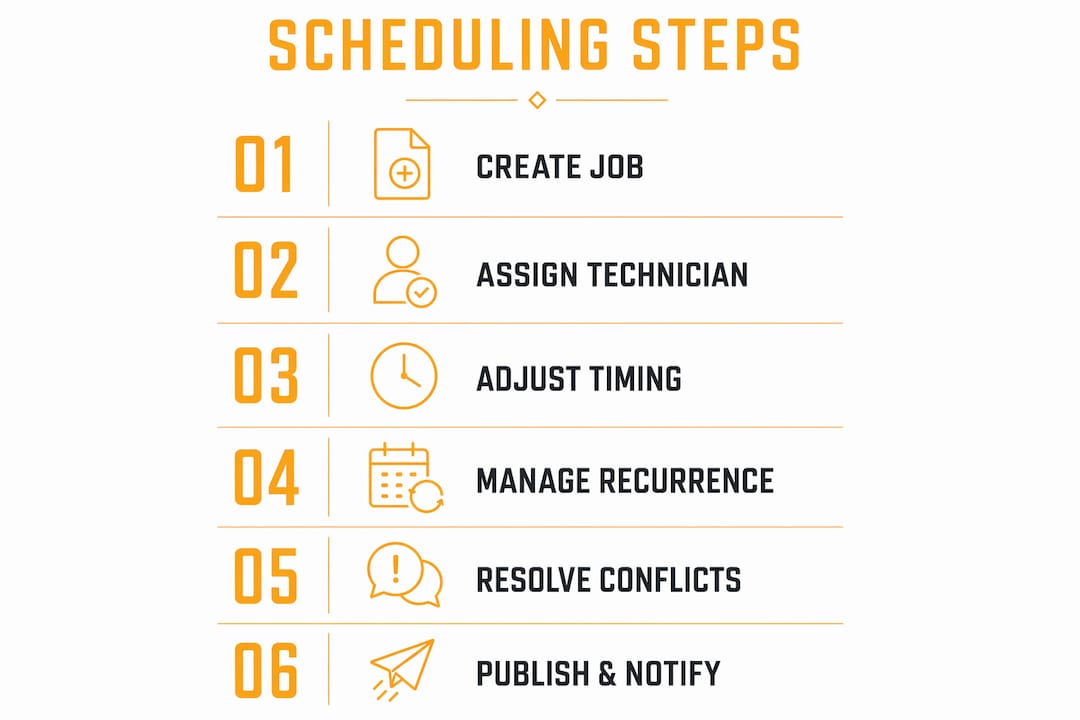
Step 2: Assign the job to a technician. Drag the job block from the unassigned queue to the correct technician row and time slot. AI-enhanced scheduling suggests the best match by pulling live certifications, location, and availability data before you act. That suggestion appears as a highlighted slot or a ranked list of technicians.
Step 3: Adjust timing with precision. Grab the edge of the job block and resize it to match the actual estimated duration. The 5-minute increment standard means you can set a 45-minute tune-up or a 2-hour installation without rounding to the nearest hour.
Step 4: Handle recurring and multi-day jobs. For maintenance contracts or multi-day installations, use the recurring task feature to auto-populate the schedule. Recurring and multi-day task support respects real working rhythms instead of forcing every job into a single-day box.
Step 5: Resolve conflicts visually. If two jobs land on the same technician at the same time, the overlap stacking feature shows both blocks side by side. Move one block to an open slot or reassign it to another qualified technician. The conflict alert clears automatically once the schedule is legal.
Step 6: Publish and notify. Once the schedule looks right, publish it. Every technician receives an instant update on their device with job details, customer address, and arrival time.
Pro Tip: Set your default time increment to 10 minutes during initial setup. Five-minute precision is available, but 10-minute cells give newer dispatchers enough room to work without accidentally creating 5-minute gaps between jobs that look filled but are not.
How does visual scheduling improve team coordination?
The biggest operational gain from a visual scheduling tool is the elimination of the "single source of truth" problem. Outdated paper schedules and disconnected spreadsheets create failure points where office staff and field technicians work from different versions of the day. A live drag-and-drop calendar removes that gap entirely.
The coordination benefits stack up quickly once the system is running:
- Real-time field alignment: Technicians see schedule changes on their phones the moment a dispatcher makes them, eliminating the need for confirmation calls.
- Automated compliance alerts: The system flags overtime violations, certification mismatches, and labor law conflicts before a shift is published.
- Fewer manual errors: Moving a block is faster and more accurate than retyping a time in a spreadsheet, where a single keystroke error can send a technician to the wrong address.
- Simpler shift swaps: When a technician calls in sick, a manager drags their jobs to available colleagues in under a minute instead of spending 20 minutes on the phone.
- Better customer service: Accurate appointment windows mean fewer late arrivals and fewer calls from customers asking where their technician is.
"The true benefit lies not in the drag-and-drop action itself but in AI-powered, real-time data integration that suggests optimal assignments and prevents compliance issues before managers act. Without live certifications, labor cost rules, and GPS updates feeding the system, non-compliant shifts requiring manual rework are the predictable result."
That quote captures the core lesson. The visual interface is the front end. The data quality underneath it determines whether the schedule actually works in the field.
Common challenges when implementing a drag-and-drop planner
Every scheduling tool has friction points. Knowing them in advance saves time and prevents the frustration that causes teams to abandon new software and revert to whiteboards.
- Too-tight scheduling: Placing jobs back to back without travel time is the most common mistake. Configurable 5-to-15-minute time increments help, but only if buffer rules are set before the first schedule is built.
- Mobile versus desktop interface gaps: Some platforms show a simplified view on mobile that hides conflict alerts visible on desktop. Test the mobile experience with your field technicians before going live.
- Data sync failures: Live certifications, labor cost rules, and GPS updates must feed the system continuously. A technician whose certification expired last week should not appear as available for a job that requires it.
- Conflicting overlaps going unnoticed: Overlap stacking only works if managers know to look for the "+N" badge. Train your team to treat any badge as a mandatory review before publishing.
- Manual data entry errors during migration: When moving from a spreadsheet to scheduling software, import job templates and technician profiles rather than retyping them. One wrong certification entry can cascade into weeks of bad assignments.
Pro Tip: Run a two-week parallel period where your team uses both the old scheduling method and the new software simultaneously. This catches data gaps and builds confidence without putting customer appointments at risk.
Training staff for lasting adoption
Training is the step most managers skip. A one-hour walkthrough on day one is not enough. Schedule a 30-minute review session at the end of the first week to address real problems the team encountered. Assign one dispatcher as the internal expert who owns the system configuration and answers questions from colleagues.
Key takeaways
Drag and drop scheduling delivers its full value only when real-time data, proper configuration, and trained staff work together as a system.
| Point | Details |
|---|---|
| Configure before scheduling | Set buffer times, user roles, and recurring rules before dragging a single job. |
| Use 5-minute precision | Match time increments to real job durations to avoid gaps and technician delays. |
| Feed live data to the system | Sync certifications, GPS, and labor rules so conflict detection actually works. |
| Train the team, not just the dispatcher | Every user needs to understand overlap badges and conflict alerts. |
| AI suggestions improve accuracy | Let the system recommend technician matches before you manually assign jobs. |
What I've learned from watching trades businesses adopt scheduling tools
Mark here. I've watched dozens of HVAC and plumbing operations implement visual scheduling tools, and the pattern is consistent. The businesses that get the most out of these systems are not the ones with the most technicians or the most complex jobs. They are the ones whose office managers spend the first week configuring defaults instead of immediately dragging jobs around.
The drag-and-drop interface is intuitive. That is both its strength and its trap. Because it feels easy, managers assume the system is ready to use out of the box. It is not. Buffer rules, certification data, and recurring job templates need to be in place first. Without them, the visual calendar looks clean but produces schedules that fall apart in the field by 10:00 AM.
The AI-assisted assignment feature is where I see the biggest untapped value. Most managers treat it as a suggestion they can ignore. The better approach is to treat it as a first draft that you override only when you have a specific reason. The system sees live location, certification status, and current workload simultaneously. A dispatcher working from memory cannot match that.
The last thing I will say: do not automate away human judgment entirely. The AI does not know that a particular technician has a difficult history with a specific customer, or that a job site has parking restrictions that add 15 minutes to every visit. Keep those notes in the system, and keep a human reviewing the final schedule before it publishes.
— Mark
Tradepilotnet's scheduling tools for trades businesses
Tradepilotnet is built specifically for HVAC, electrical, and plumbing businesses that need more than a generic calendar. The platform combines AI-powered dispatch with a visual scheduling interface that matches every job to the best-fit technician by skill, availability, and location in under a second.
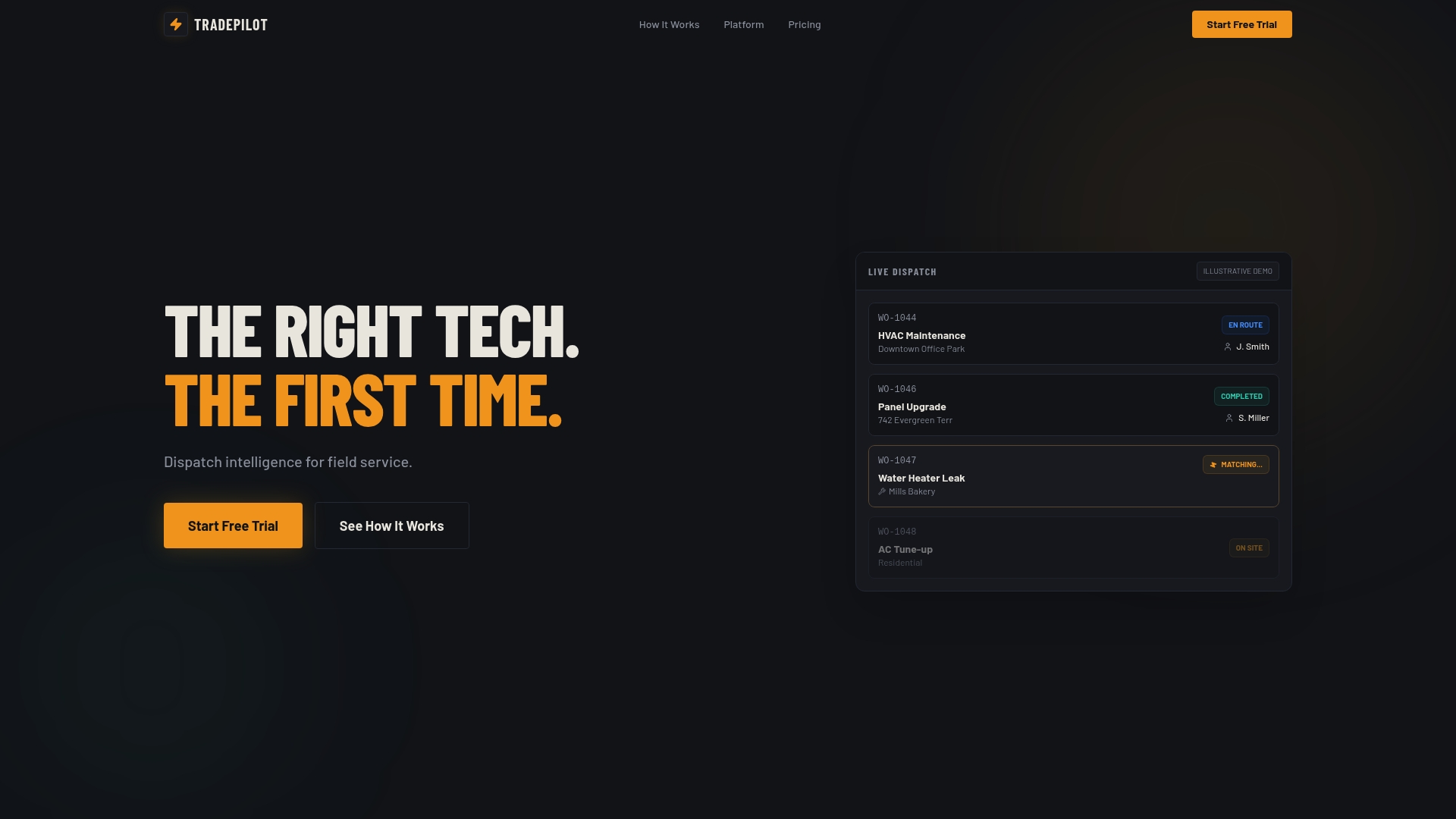
Real-time syncing keeps office and field aligned without phone calls. Automated conflict detection catches labor law violations before a shift is published. Mobile access gives technicians their updated schedule the moment a dispatcher makes a change. Invoicing, inventory, and analytics live in the same platform, so you are not switching between four tools to run one business. If your current scheduling process involves a whiteboard or a shared spreadsheet, Tradepilotnet is the direct replacement.
FAQ
What is drag and drop scheduling?
Drag and drop scheduling is a visual method for assigning and adjusting work tasks by moving them across a calendar interface. It replaces manual data entry with a clickable, real-time schedule that updates instantly for all users.
How accurate is drag and drop scheduling for short jobs?
Professional scheduling interfaces support 5-minute cell precision, meaning managers can schedule a 25-minute service call without rounding to the nearest half hour.
Does drag and drop scheduling handle labor law compliance?
Yes. Scheduling software with built-in conflict detection flags labor law violations in real time when a job is placed in a non-compliant slot, before the schedule is published.
What happens when two jobs overlap on the same technician?
Overlap stacking displays both jobs side by side or as a "+N" badge so the conflict is visible without crashing the interface. The manager then moves or reassigns one job to resolve it.
How long does it take to set up a drag-and-drop planner?
Initial configuration, including user roles, buffer rules, and job templates, typically takes a few hours. A parallel testing period of one to two weeks is the standard practice before going fully live.