
Convert an estimate to an invoice only after the client has given written approval, then carry every line item over unchanged, assign a fresh invoice number, set an issue date and due date, attach a payment link, and log the moment you sent it. Skip any one of these and you're inviting a payment dispute or a duplicate billing headache. The rest comes down to sequencing and paperwork discipline.
TL;DR:
- Only convert an estimate after written approval, current version, recorded deposits, and accurate billing details are confirmed to prevent disputes.
- Always start from the approved estimate, copy all line items exactly, assign a new invoice number, set correct dates, and attach a tracked payment link to ensure consistency.
- Handle partial approvals by invoicing only approved lines and create separate invoices or change orders for scope additions to avoid scope disputes.
- Use separate numbering systems, show due dates and payment methods upfront, and automate reminders to speed up invoice payments.
- Automate the workflow so invoices are generated immediately upon approval and job completion to improve cash flow and reduce late payment issues.
Table of Contents
- What Has to Be True Before You Convert an Estimate to an Invoice
- How to Convert an Estimate to an Invoice, Step by Step
- What to Do When Only Part of an Estimate Gets Approved
- Habits That Get Invoices Paid Faster
- How a Connected Dispatch and Invoicing Workflow Closes the Gap
- Why Delay Between Approval and Invoicing Costs More Than It Looks Like
- TradePilot: Automating the Estimate to Invoice Handoff
- Sources
What Has to Be True Before You Convert an Estimate to an Invoice
Converting too early is the single most common cause of billing disputes in field service and contract work. Before you touch the convert-to-invoice button, run through a short checklist. QuickBooks builds this requirement directly into its software: the estimate's status has to read "Accepted" before the conversion action becomes available. That's not a technicality. It's the difference between billing for agreed work and billing for a guess.
Check these four things first:
- Written approval exists. A timestamped in-platform acceptance, a signed PDF, or an explicit email all count. A verbal "sounds good" on a job site does not.
- The estimate version is current. If the client asked for changes after your last quote, confirm you're converting the final version, not an earlier draft still sitting in your outbox.
- Deposits and credits are recorded. If you collected a deposit or the client has account credit, make sure it's logged and flagged to apply to this job.
- Billing details are accurate. Confirm the client's billing address, tax status, and preferred payment method before the invoice goes out, not after they call asking why the total looks wrong.
How to Convert an Estimate to an Invoice, Step by Step
Once approval is confirmed, the actual estimate invoice process is mechanical. Follow it in order and you eliminate almost every retyping error that causes billing delays.
- Open the approved estimate record, not a blank invoice. Never rebuild a job from memory. Start from the source document, whether that's a PDF or the estimate saved in your invoicing software.
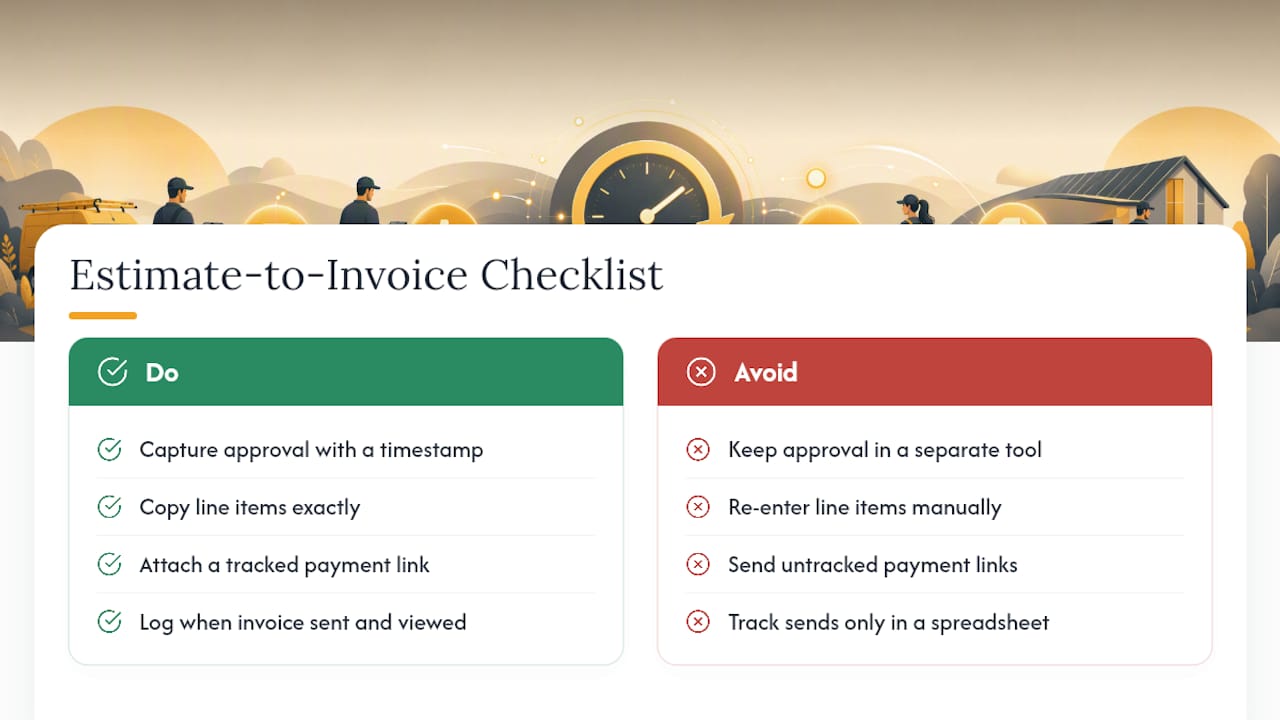
- Copy every line item exactly as quoted. Description, quantity, unit price, tax rate, and any discount need to transfer without edits. This is the core of the estimate invoice process: the client agreed to specific numbers, and the invoice should reflect those same numbers.
- Assign a new invoice number from a separate sequence. Don't reuse the estimate number or append a suffix to it. Invoices and estimates should track on entirely different counters so your books don't tangle later.
- Set the invoice date and calculate the due date. Apply your stated terms, whether that's Net 15, Net 30, or due on receipt, and display the due date clearly rather than making the client do the math.
- Apply any deposit or credit as its own line. Show it as a deduction with the remaining balance clearly stated below it. Hiding a deposit inside a lump total is how clients end up disputing amounts they already paid.
- Attach a tracked payment link. A clickable payment portal beats a static PDF for one simple reason: it gets paid faster. Attaching an online payment link measurably shortens payment time compared to sending a PDF and hoping the client mails a check.
- Send through tracked delivery and log the date. Whether you're using an invoice portal or email delivery with read receipts, record when the invoice went out and, if your software supports it, when the client opened it. Then link the invoice record back to the original estimate so anyone reviewing the file later can trace the full history.
Platforms vary in the mechanics. Wave, for instance, shows slightly different steps converting an estimate on desktop versus mobile, and specialty software like ezyVet builds a dedicated "make an invoice from an estimate" function into its own documentation. The steps above hold regardless of which tool you're running.
Pro Tip: Set a personal rule that no invoice goes out without a due date printed in bold, even if your terms are "due on receipt." Ambiguous due dates are the number one reason invoices sit unpaid past 30 days.
What to Do When Only Part of an Estimate Gets Approved
Real jobs rarely stay as clean as the paperwork suggests. Clients approve some lines and reject others, or they ask for more work mid-project. Handling these moments correctly is what separates a smooth estimate to billing process from a client relationship headache.
- Partial approval: Convert only the lines the client signed off on. Leave the rejected or pending lines out of the invoice entirely rather than including them "just in case."
- Scope additions after approval: Don't quietly fold new work into the existing invoice. Create a new estimate for the added scope and invoice it separately, or add a clearly labeled change-order line so the client sees exactly what's new and why.
- Log the approval trail. Record who approved which version and when, and carry that metadata onto the invoice itself. If a client later questions a charge, you want a timestamp and a name attached to the approval, not a memory of a phone call.
- Handle disputes with a side-by-side. If a client pushes back on an amount, pull up the original estimate next to the invoice line by line. Unapproved modifications and thin approval records cause most of the friction that turns a simple invoice into a weeks-long back-and-forth.
Treat the invoice as the final record of what was agreed, never a place to slip in a surprise charge. Surprises are what get invoices disputed, delayed, or ignored.
Habits That Get Invoices Paid Faster
A handful of configuration choices, made once, save hours of chasing payments later. Small businesses that get invoicing right treat estimates and invoices as connected but distinct records, not interchangeable documents.
- Run separate numbering sequences. Use a prefix like EST- for estimates and INV- for invoices so a glance at the number tells you which document type you're looking at.
- Show due dates and accepted payment methods up front. Don't bury this information at the bottom of page two. Put it near the total, where the client's eye lands first.
- Use tracked payment links with reminders. A payment button beats a mailed check almost every time, and automatic reminders catch invoices that would otherwise slip through the cracks of a busy inbox.
- Keep the full chain visible: estimate, approval, invoice. Log send and view timestamps on every invoice so you know exactly where each one stands without opening a separate spreadsheet.
Pro Tip: Review your unpaid invoice list every Friday and note which ones lack a logged "viewed" timestamp. If a client hasn't even opened it a week later, that's your cue to follow up before it becomes a 60-day-overdue problem.
How a Connected Dispatch and Invoicing Workflow Closes the Gap
The estimate to payment process breaks down most often at the handoff between office and field. Someone quotes a job, the technician finishes it, and the invoice sits untouched for days because nobody owned that step. A connected system fixes this by triggering invoice creation the moment an estimate is accepted and a job is marked complete, instead of waiting on someone to remember.
The workflow should handle:
- Capturing acceptance with a timestamp, not a verbal "go ahead"
- Carrying line items over with zero manual retyping
- Attaching a payment link automatically at send time
- Logging send and view events on every invoice
For small service teams, the operational fix is simple: nobody closes a job in the system until the acceptance gate and the invoice are both logged. Skip that rule and invoices drift for days.
Why Delay Between Approval and Invoicing Costs More Than It Looks Like
Every day between "the client said yes" and "the invoice went out" compounds. A contractor who invoices same-day gets paid on a 15 to 30 day clock. One who waits a week before invoicing, then waits again for the client to notice the email, has quietly pushed their own cash flow back by two or three weeks on every job. Multiply that across a dozen jobs a month and you've got a business that looks profitable on paper and broke in the bank account.
Most disputes I've seen traced back to a missing approval record, not a disagreement over price. When you log who approved what, and when, arguments over scope evaporate because there's nothing left to argue about. My rule of thumb: if the client accepted it, the invoice should go out within 24 hours unless there's a documented change still pending. Waiting for "a better time" to batch invoices is how small businesses accidentally become their clients' interest-free lenders.
— Mark Korley
TradePilot: Automating the Estimate to Invoice Handoff
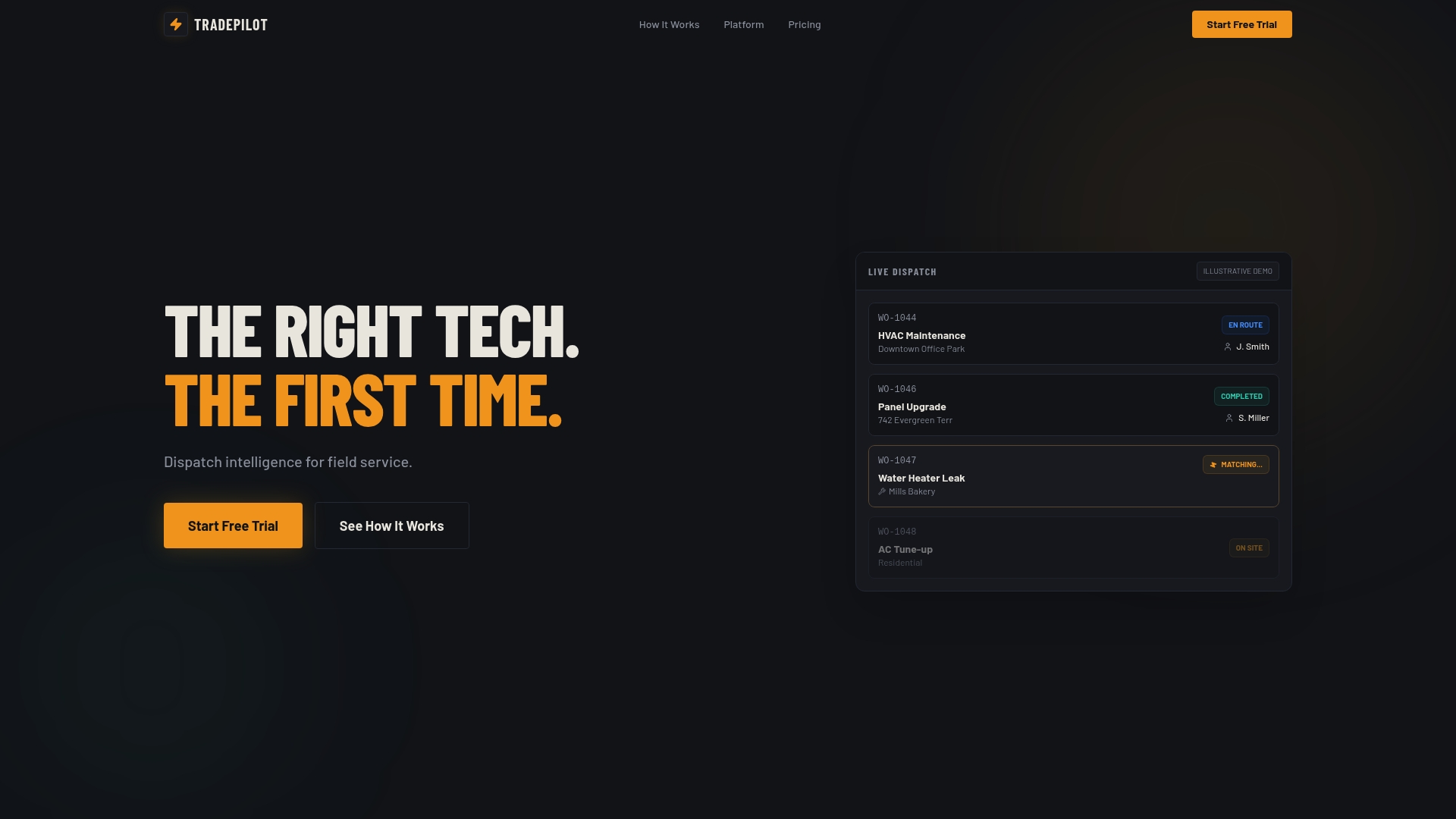
TradePilot exists for exactly the failure point described above: the gap between "job approved" and "invoice sent." Instead of tracking acceptance in one tool, line items in another, and payment status in a spreadsheet, TradePilot's platform captures approval, generates the invoice with every line item intact, attaches a payment link, and logs the send and view timestamps automatically. For HVAC, electrical, and plumbing teams juggling multiple technicians and jobs a day, that's the difference between chasing payments and getting paid on schedule.
If you're evaluating software for this, run any vendor through four questions: does it capture approval with a timestamp, does it copy line items exactly, does it attach a tracked payment link, and does it log when the invoice was sent and viewed. A tool that bundles dispatch and billing together also closes the loop between technician job completion and invoice creation, so nothing sits waiting on someone's memory.
Visit the TradePilot platform to start a trial and see how job-to-invoice automation fits your team's workflow.
Sources
For platform-specific steps, QuickBooks documents its convert-to-invoice action, Wave covers the same process for web and mobile, and Patriot Software breaks down the core distinction between estimates and invoices. Each is a solid reference if your current software's own help docs fall short.
- Convert an estimate into an invoice in QuickBooks - Intuit
- Convert an estimate to an invoice – Help Center
- How to Turn an Estimate Into an Invoice (2026 Steps) | Invoice Maker