A work order status is a digital marker that shows where a job sits in its lifecycle and controls what can happen to it next: who can touch it, what automations fire, and how it gets counted in reports. Get the status wrong and you either block a technician from logging hours or trigger an invoice before the job is done.
Most systems, whether you run IBM Maximo, Microsoft Dynamics 365 Field Service, or Oracle PeopleSoft, share a common backbone of statuses:
- Unscheduled/New: the request exists but no technician or time slot is assigned
- Scheduled: a technician and time window are locked in
- In Progress: work is actively underway
- On Hold/Waiting: something (parts, approval, access) is blocking progress
- Complete: the technician has finished the work
- Posted/Approved: costs and labor are finalized and reflected in financials
- Closed: the record is locked and archived
- Canceled: the work order is terminated before completion
Each status typically gates a specific action. Scheduled permits dispatch. In Progress allows time entry. Complete triggers invoicing. Understanding work order statuses this way, as permission gates rather than passive labels, changes how you design and audit them.
Key Takeaways
Work order statuses function as permission gates and automation triggers, and disciplined status design directly reduces manual coordination and reporting errors.
| Point | Details |
|---|---|
| Header status is derived, not set | Header status calculates automatically from weighted task statuses; never override it manually. |
| Separate system statuses from substatuses | Keep core system values fixed and use substatuses to capture business context like reason codes. |
| Build an explicit transition matrix | List allowed next statuses for every current status to block illogical jumps like Closed to Scheduled. |
| Tie notifications to transitions, not noise | Send real-time alerts only on meaningful status changes and escalate stalled On Hold jobs by time elapsed. |
| Automate the status gates | Tradepilot triggers dispatch, invoicing, and inventory actions directly off status changes with a built-in audit trail. |
Table of Contents
- Understanding the Typical Work Order Lifecycle Stages
- What's the Difference Between Header and Task Status?
- System-Defined Statuses vs. User-Defined Substatuses
- What Status Transitions Should You Allow?
- How Do Booking Statuses Work in Field-Service Systems?
- How Statuses Trigger Automation and Gate Actions
- Best Practices for Naming and Categorizing Statuses to Optimize Clarity and Usability
- Customizing Statuses for Your Industry or Organization
- Common Pitfalls in Designing Work Order Statuses
- Connecting Statuses to Notifications and Escalation
- Monitoring Status Data to Improve Workflow Efficiency
- How Tradepilot Applies This Status Model in Practice
- Frequently Asked Questions
- Sources
Understanding the Typical Work Order Lifecycle Stages
Every work order moves through a predictable sequence, even when the underlying software calls the steps by different names. Knowing this sequence helps you spot where your own process breaks down.
- Creation/request: a customer call, a sensor alert, or a preventive maintenance schedule generates the job.
- Triage/prioritization: someone reviews urgency, assigns a priority code, and confirms scope.
- Scheduling/dispatch: a technician and time window get matched to the job based on skill and location.
- Execution/booking: the technician travels, arrives, and performs the work, often logging status changes from a mobile app.
- Review/approval: a supervisor confirms the work meets standard before it's billed.
- Invoicing/posting: labor, parts, and costs get finalized and pushed to accounting.
- Closure/archival: the record locks for reporting and historical reference.
Duration varies wildly by trade and job type. A simple filter swap might move from creation to closure in under an hour. A commercial HVAC repair waiting on a specialty part can sit in On Hold for a week or more. The two most common bottlenecks are scheduling delays (not enough technicians with the right skill available) and parts delays (waiting on a distributor).
Picture this as a flowchart: a straight line from Creation through Closure, but with a branch at almost every stage that routes back to On Hold. Scheduling can loop back to Triage if no technician is available. Execution can branch to On Hold if a part is missing. Review can branch back to Execution if the fix fails inspection. The straight-line version of the lifecycle is the exception, not the rule.
What's the Difference Between Header and Task Status?
A work order often contains multiple tasks, and each one can carry its own status. The header status is the overall status of the entire work order. The task status reflects an individual line item within it. Confusing the two is one of the most common configuration mistakes operations teams make.
| Attribute | Header Status | Task Status |
|---|---|---|
| Editable directly | No, in most systems | Yes |
| System-assigned | Derived automatically | Set by technician or scheduler |
| Who updates it | Nobody, it's calculated | Technician, dispatcher, or automation |
| Typical use case | Reporting, KPIs, closure gate | Field execution, time tracking |
PeopleSoft's documentation is explicit on this point: the header status is passive. It gets derived from a weighted priority list of task statuses, and administrators configure that weighting once, not per work order. Here's a simplified example of how that weighting might work:
| Priority Rank | Task Status | Effect on Header |
|---|---|---|
| 1 (highest) | On Hold | Header becomes On Hold regardless of other tasks |
| 2 | In Progress | Header becomes In Progress if no task is On Hold |
| 3 | Complete | Header becomes Complete only if all tasks are Complete |
If a work order has four tasks and three are marked Complete but one is On Hold waiting for a part, the header status stays On Hold. This is by design; it prevents a job from closing while any piece of it remains unfinished. Maximo handles the same problem differently: it tracks status at the work order level directly but supports parent/child work order structures where child statuses can influence, but don't automatically override, the parent.
System-Defined Statuses vs. User-Defined Substatuses
System-defined statuses are the internal values your platform relies on for logic. They control what buttons appear, what reports count as "open," and what automations fire. User-defined substatuses (sometimes called reason codes) sit on top of them and add business context without touching the underlying logic.
Mixing these two up is a fast way to break automation. Some ground rules:
- Never edit core system status values. If your platform ships with In Progress as an internal value, don't rename it or repurpose it for something else; automations and reports are wired to that exact value.
- Use substatuses for the "why." A job can be On Hold for a dozen different reasons: waiting on a part, waiting on customer approval, waiting on access to the site. The system status stays On Hold; the substatus captures the detail.
- Map every user label back to one internal value. "On Hold, Awaiting Part," "On Hold, Customer Reschedule," and "On Hold, Weather Delay" should all map to the same internal On Hold status so aging reports and KPIs still calculate correctly.
Both PeopleSoft and Maximo require this kind of mapping explicitly. PeopleSoft insists on at least one user-defined status tied to every internal header status before the system will let you go live. Maximo's approach is similar in spirit: internal status codes like WAPPR, APPR, or COMP stay fixed, while organizations layer their own labels and workflows around them.
What Status Transitions Should You Allow?
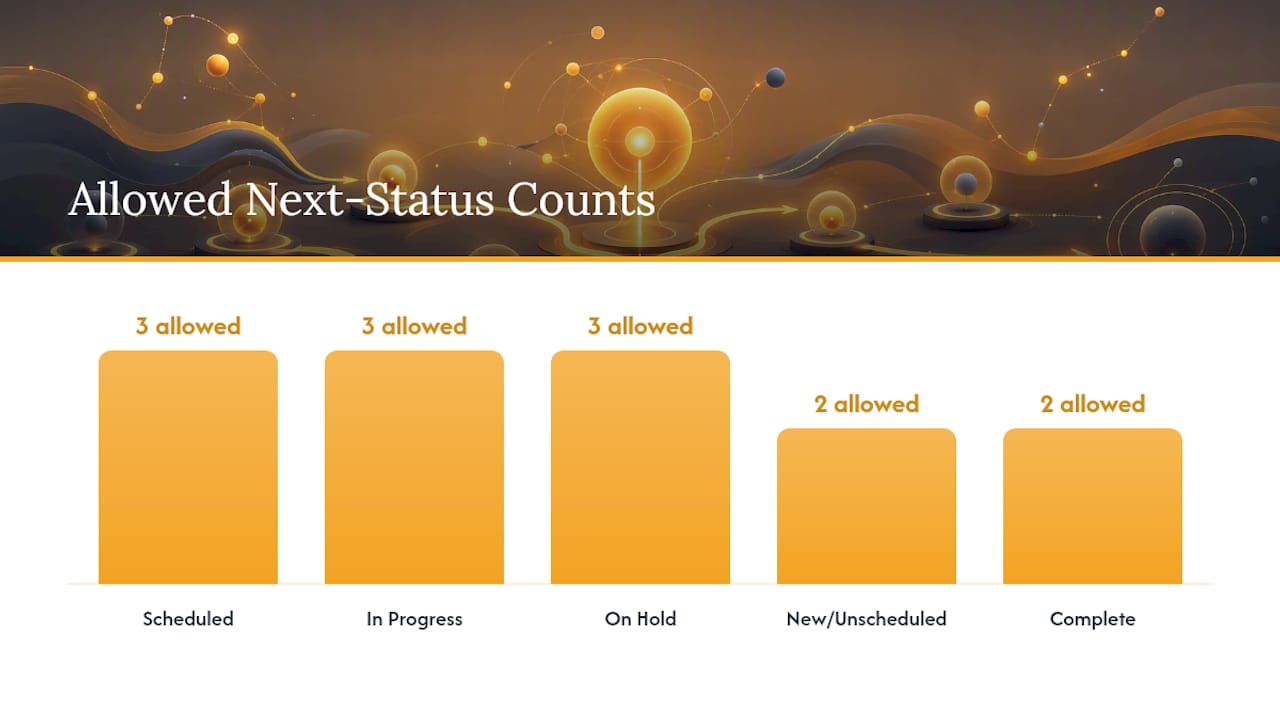
Not every status should be able to jump to any other status. A work order that's Closed shouldn't casually flip back to In Progress; that kind of jump should require an administrative reopen step, not a one-click change. Building a transition matrix forces you to think through which moves make sense.
| From Status | Allowed Next Status |
|---|---|
| New/Unscheduled | Scheduled, Canceled |
| Scheduled | In Progress, On Hold, Canceled |
| In Progress | On Hold, Complete, Canceled |
| On Hold | Scheduled, In Progress, Canceled |
| Complete | Posted/Approved, In Progress (reopen) |
| Posted/Approved | Closed |
| Closed | (terminal, requires reopen workflow) |
| Canceled | (terminal) |
A few scenarios illustrate why this matters in daily operations:
- Parts delay mid-job. A technician starts an In Progress repair, discovers a failed part isn't in the truck stock, and the work order flips to On Hold. Nothing gets invoiced or closed until the part arrives and status returns to Scheduled or In Progress.
- Partial completion on a multi-task order. One task on a four-task work order hits Complete while three remain open. The header status stays In Progress or On Hold (per the weighting rules above) even though a technician has genuinely finished part of the job.
- Urgent cancellation. A customer cancels a scheduled job an hour before arrival. Canceling the work order should automatically release any reserved inventory and void any draft invoice tied to it, not leave those records orphaned.
Closed and Canceled are typically terminal states. Some organizations run a nightly batch process that auto-transitions everything sitting in Complete for more than a set number of days straight to Closed, which keeps the "open" queue clean without requiring manual intervention on every single job.
How Do Booking Statuses Work in Field-Service Systems?
Booking statuses track the technician's real-time movement against a scheduled appointment, and they're distinct from the work order status itself, though the two are tightly linked.
- Scheduled: a booking exists with a technician and time window assigned, but travel hasn't started.
- Traveling: the technician is en route; this typically stamps a travel-start timestamp.
- In Progress: the technician has arrived and begun work; this stamps an arrival timestamp.
- On Break: work is paused temporarily without closing out the booking.
- Completed: the technician has finished; this stamps a completion timestamp used for duration reporting.
- Canceled: the booking is voided, often triggering a reschedule prompt.
According to Microsoft's Dynamics 365 Field Service documentation, booking status changes can automatically update the underlying work order status. When a technician marks a booking Completed on their phone, that action can push the associated task status to Complete, which then feeds into the header status calculation. Watch for edge cases when multiple bookings exist against one work order, like a callback visit for the same job. Each booking should map cleanly to its own task, not silently overwrite the status of an unrelated task.
How Statuses Trigger Automation and Gate Actions
Statuses aren't just labels for a dashboard. They function as gates: crossing into a new status can unlock or lock specific business actions.
- Scheduled typically unlocks dispatch notifications, technician mobile access to the job, and customer arrival-window texts.
- In Progress usually unlocks time entry, parts consumption logging, and photo/note uploads.
- Complete commonly triggers invoice generation and converts reserved or temporary parts into posted actuals.
- Posted/Approved typically locks the work order from further edits and pushes costs into accounting.
- Canceled should automatically release any reserved inventory and void draft invoices.
A concrete example: a technician marks a job Complete from a mobile app. That single status change should trigger invoice creation, convert the parts pulled from the truck into posted actuals, and close out the time entry, all without a supervisor manually chasing each step. This is what treating statuses as an orchestration layer rather than static labels actually looks like in practice, and it's the same logic behind automated invoice generation tied directly to job completion.
Pro Tip: Make every automated status transition idempotent, meaning if the same "Complete" event fires twice due to a network retry or a double tap, it should not create two invoices or deduct inventory twice. Build a check that looks for an existing invoice or posted actual before creating a new one.
Best Practices for Naming and Categorizing Statuses to Optimize Clarity and Usability
Vague status names are where confusion starts. "Pending" means something different to a dispatcher than it does to a customer service rep, and that ambiguity shows up as wasted phone calls asking "so where are we on this?"
Name statuses for what they permit, not just how they feel. "On Hold" is better than "Stuck," because it signals a defined, resumable state rather than a dead end. Keep the core status list short, ideally under ten values, and push detail into substatuses rather than multiplying system statuses. A ballooning list of near-duplicate statuses (Scheduled, Scheduled-Confirmed, Scheduled-Pending-Confirmation) is a sign the underlying substatus layer isn't being used correctly.
Group statuses by function when you present them to different audiences. A technician's mobile app should show only the statuses relevant to fieldwork: Scheduled, Traveling, In Progress, On Hold, Complete. A back-office dashboard needs the fuller set, including Posted and Closed, because that's where financial reconciliation happens. Showing every technician every possible administrative status just adds noise to a screen they're glancing at between jobs.
Consistency across teams matters more than cleverness. If your electrical crew calls it "Awaiting Parts" and your HVAC crew calls the same condition "Parts Backorder," your reporting will treat them as two different things unless you explicitly map both to the same internal value. Pick one term, document it, and enforce it at the point of entry rather than trying to reconcile it later in a spreadsheet.
Customizing Statuses for Your Industry or Organization
The default status set that ships with most platforms is a starting point, not a finished product. An HVAC company running seasonal maintenance contracts has different needs than an electrical contractor doing emergency service calls, and your status map should reflect that.
Start by mapping your actual operational stages before touching any configuration screen. Walk a job from first call to final invoice and write down every distinct state it passes through in real life, including the awkward ones like "waiting on customer to approve the estimate" or "technician on site but access denied." Only then decide which of those becomes a formal substatus versus a note in the job history.
Industry-specific patterns are worth building deliberately. A plumbing business doing emergency service might need a "Dispatched, Urgent" substatus that bypasses normal queue routing. A commercial electrical contractor managing multi-week installations might need intermediate milestones like "Rough-In Complete" and "Final Inspection Pending" that a simple residential HVAC shop would never use.
Resist the urge to copy another company's status list wholesale. What works for a 200-technician national franchise is usually overkill for a 12-technician regional shop, and the reverse is just as true. Build the list around how your dispatchers, technicians, and billing team actually talk about a job, then formalize that language into your system.
Common Pitfalls in Designing Work Order Statuses
The most frequent mistake is treating every business nuance as a new system status instead of a substatus. This bloats the core list, confuses reporting, and eventually breaks automations that were written against a smaller, cleaner set of values.
A second common error is allowing illogical transitions, like letting a Closed work order jump straight back to Scheduled with no oversight. Without a defined state machine that lists explicit allowed next-statuses for every current status, users will eventually find and exploit the gaps, and your historical data will show impossible sequences.
Third: forgetting that header status is derived, not set. Teams sometimes try to manually override a header status without touching the underlying task statuses, which works temporarily until the next automated recalculation silently reverts it and nobody knows why.
Fourth, and this one is subtle: no one owns the status list. Statuses tend to accumulate over years as different managers add "just one more" value to handle an edge case, with no single person responsible for pruning or auditing the list. Two years later, you have thirty statuses, half of which are used by fewer than five work orders a year.
Finally, teams frequently skip training on what each status actually unlocks. A dispatcher who doesn't know that marking something "On Hold" prevents invoicing will avoid using it correctly, defeating the entire point of building the status in the first place.
Connecting Statuses to Notifications and Escalation
A status change is only useful if the right person finds out about it without having to go check. Building notification rules around specific transitions turns your status map into a proactive communication system instead of a passive record.
Tie customer-facing notifications to specific, meaningful transitions: a text when a technician is marked Traveling, another when the job hits Complete. Internal notifications should follow different logic. A job sitting in On Hold for more than a set number of hours should escalate automatically to a supervisor, not wait for someone to notice it during a weekly review.
Escalation rules work best when they're tiered by how long a status has been stuck, not just whether it's stuck. A job On Hold for two hours waiting on a callback is normal. The same job On Hold for two days needs a different response, possibly a manager reassigning the part order or contacting the customer directly. Build time-based triggers into your On Hold and Waiting statuses specifically, since these are the states most likely to silently stall.
Keep the notification list short enough that people actually read it. If every status change generates an alert, the important ones get lost in the noise, and staff will start ignoring the channel entirely. Reserve real-time alerts for transitions that require someone to act, and batch the rest into a daily digest.
Monitoring Status Data to Improve Workflow Efficiency
Your status history is a dataset, and treating it that way turns a bookkeeping requirement into an operational advantage. Every timestamp on a status transition tells you something about where time is actually being spent.
Start with aging reports: how long does a work order sit in each status before moving to the next one? Siemens' status documentation notes that only certain statuses, typically Complete and Closed, stop the aging clock in most reporting systems, which means anything left in New, Scheduled, or On Hold too long is actively dragging down your average cycle time.
Track a small set of status-derived KPIs consistently rather than a dozen vanity metrics: average time in On Hold (a proxy for parts and approval friction), percentage of jobs reopened after Complete (a proxy for first-time fix quality), and average time from Scheduled to In Progress (a proxy for dispatch and travel efficiency).

Review the data on a fixed cadence, not just when something feels broken. A monthly look at which statuses are accumulating the most work orders, and for how long, usually surfaces a bottleneck before it becomes a customer complaint. If On Hold volume climbs steadily over three months, that's a parts-ordering problem worth fixing before it shows up in your closure rate.
Why Status Discipline Actually Moves the Numbers
Disciplined status design isn't paperwork. Clean transitions and consistent substatus mapping mean fewer "where's my technician" calls, faster invoice cycles, and reporting you can trust. Statuses are the gatekeepers for every automation your operation depends on.
How Tradepilot Applies This Status Model in Practice
Tradepilot is built around the exact orchestration logic this article describes: statuses that don't just label a job, but actively drive what happens next. When a technician's mobile status changes to Complete, Tradepilot's platform can trigger invoice generation, update inventory actuals, and close out the scheduling record automatically, without a dispatcher manually chasing each step.
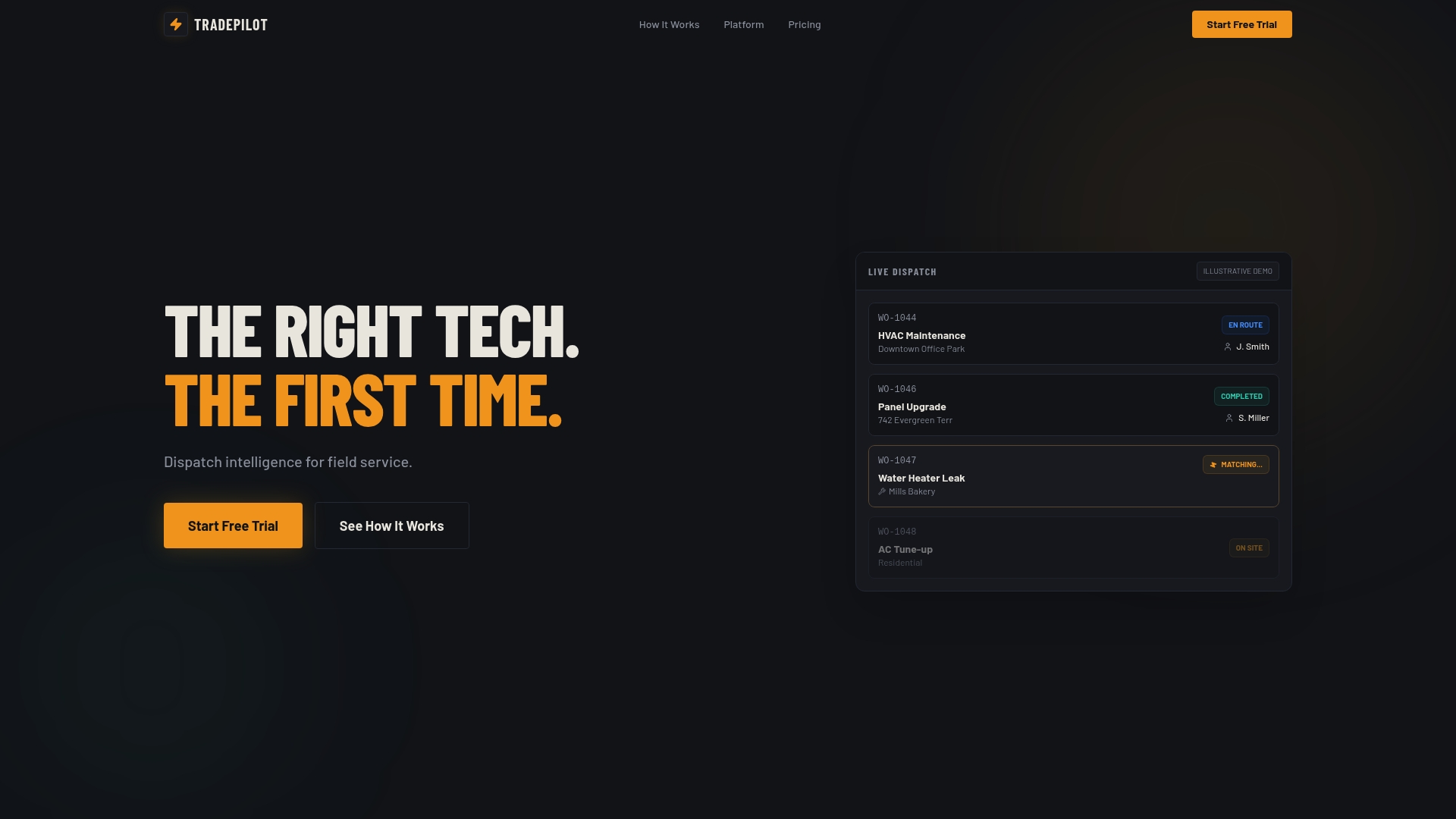
The platform's AI matching engine assigns the right technician by skill, availability, and location the moment a job status hits Scheduled, and every status change carries an audit trail so you can see exactly who moved a job from On Hold to In Progress and when. If you're redesigning your status map and want a system that treats status changes as automation triggers rather than passive fields, start a Tradepilot trial and see how dispatch, invoicing, and inventory stay in sync from a single status update.
Frequently Asked Questions
What is the difference between a work order status and a work order substatus? A status is a system-controlled value that gates permissions and automation, like In Progress or Complete. A substatus adds business context underneath it, like "On Hold, Awaiting Part," without changing the underlying system logic.
How do I check the status of a work order? Most platforms show current status directly on the work order record or a dispatch dashboard, along with a status history log showing every transition and timestamp. Field-service platforms also surface booking-level status (Traveling, In Progress) tied to the technician's mobile app.
Can a work order status be Closed and then reopened? Yes, but it should require a deliberate administrative reopen action rather than a simple status dropdown change, since Closed typically locks financial records tied to the job.
Why does my work order stay In Progress even though one task is Complete? Header status is derived from the weighted status of all tasks on the work order. If even one task is On Hold or In Progress, the header usually reflects that until every task reaches Complete.
What triggers an invoice to generate automatically? In most configurations, moving a work order or task to Complete triggers invoice creation and converts reserved parts into posted actuals, though the exact trigger point depends on your platform's automation rules.
Sources
- Work order lifecycle and system statuses - Dynamics 365 Field Service
- Defining work order statuses (PeopleSoft documentation) - Oracle
- Work order status definitions - Siemens Asset Management documentation